📅 Your Personal Schedule App
My Schedule lets your students book lessons straight into your own calendar — fully customizable, aware of everyone's timezone automatically, and connected to Telegram if you want instant alerts the moment someone books. Here's how it all works.
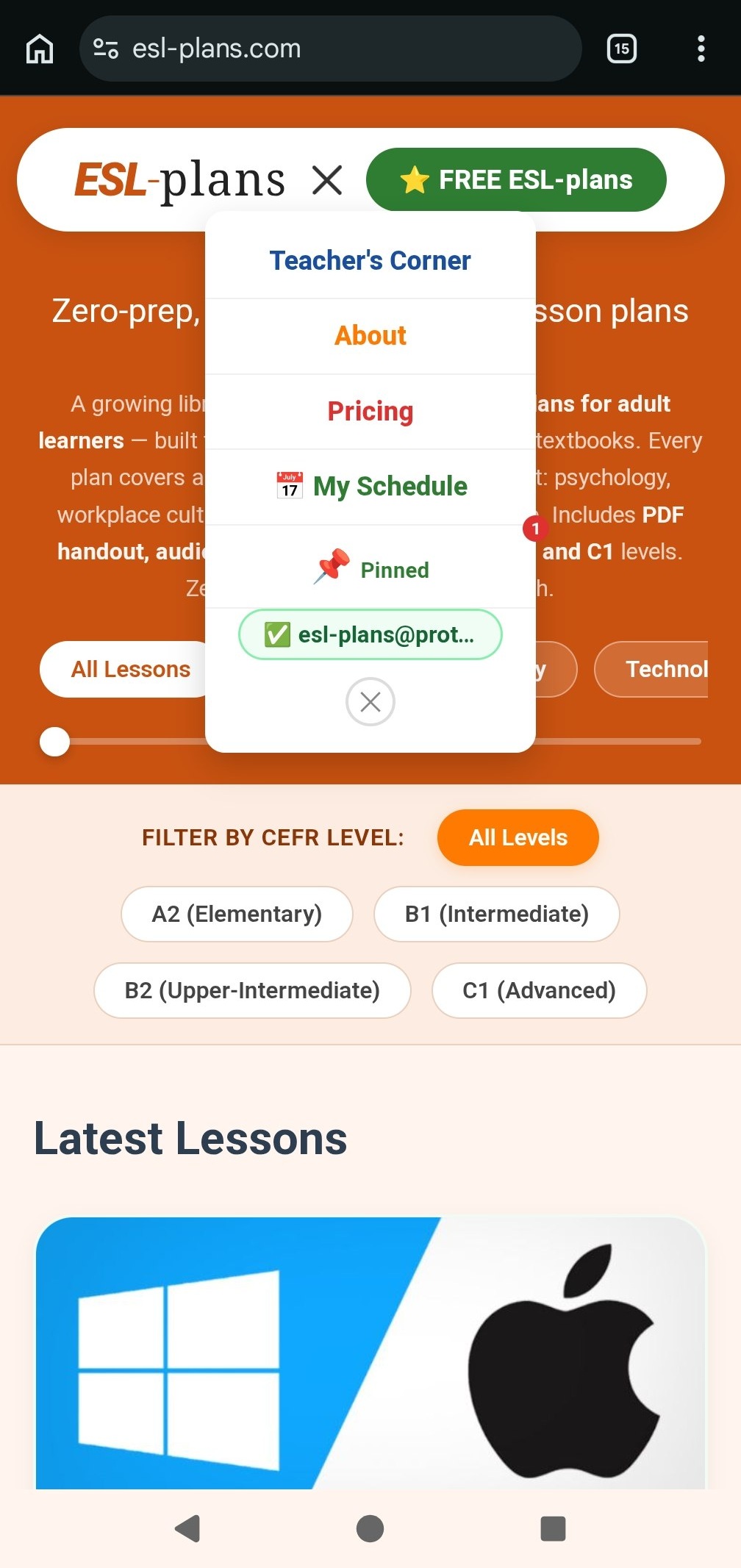
You'll find My Schedule in the menu once you're logged in. Your schedule's link is created automatically from the first part of your email — for example, esl-plans@proton.me becomes https://schedule.esl-plans.com/eslplans. Tap it to get started.
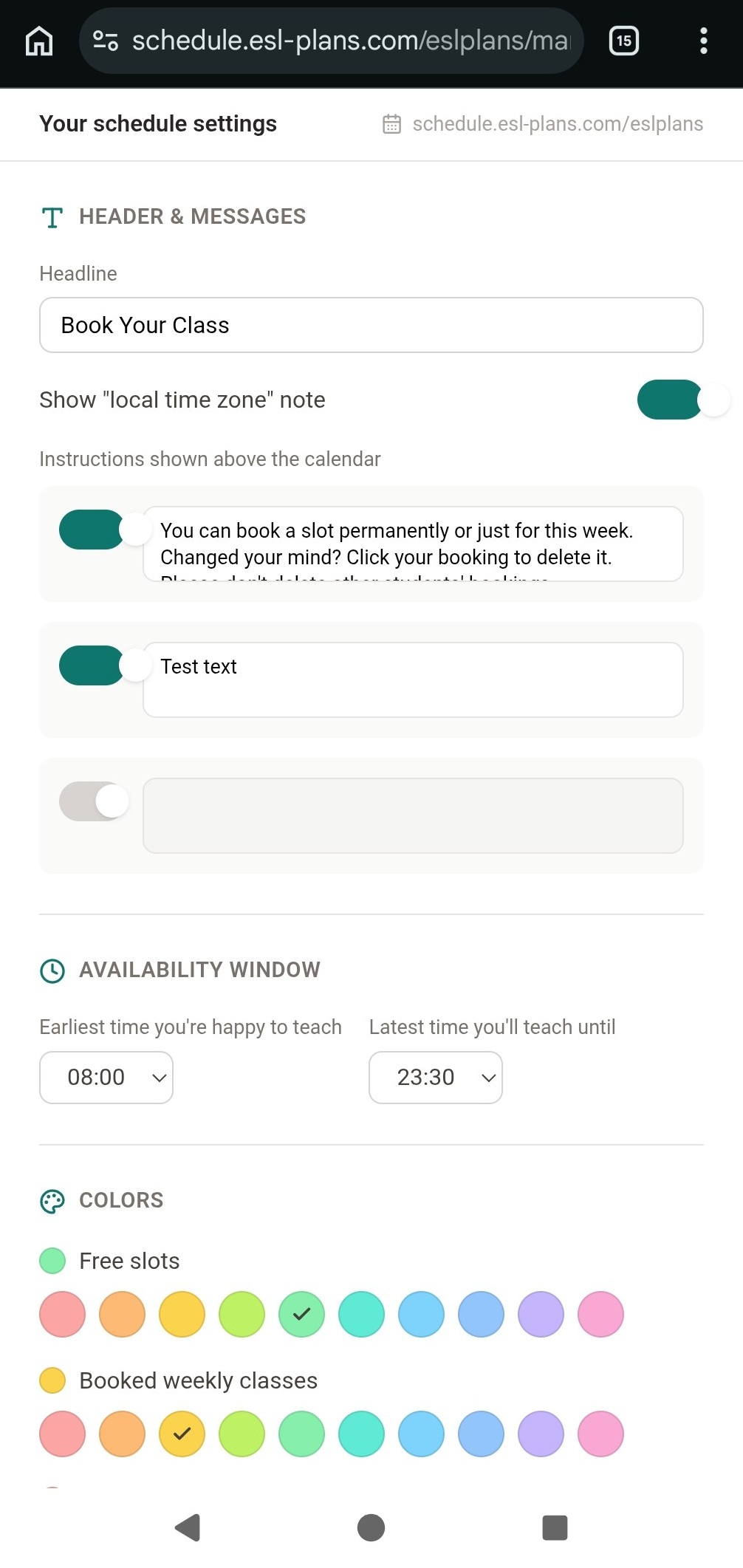
This is your settings page — your schedule's link (with your name at the end) sits at the top right. From here you can edit your headline, choose which instructions your students see, set your available hours, and pick your own colors for free, weekly, and fixed slots. If it helps your students, you can even write your instructions twice — once in English, once in their own language — both will show. All of this is just how your page looks and reads — nothing here affects how bookings themselves work, so feel free to experiment.
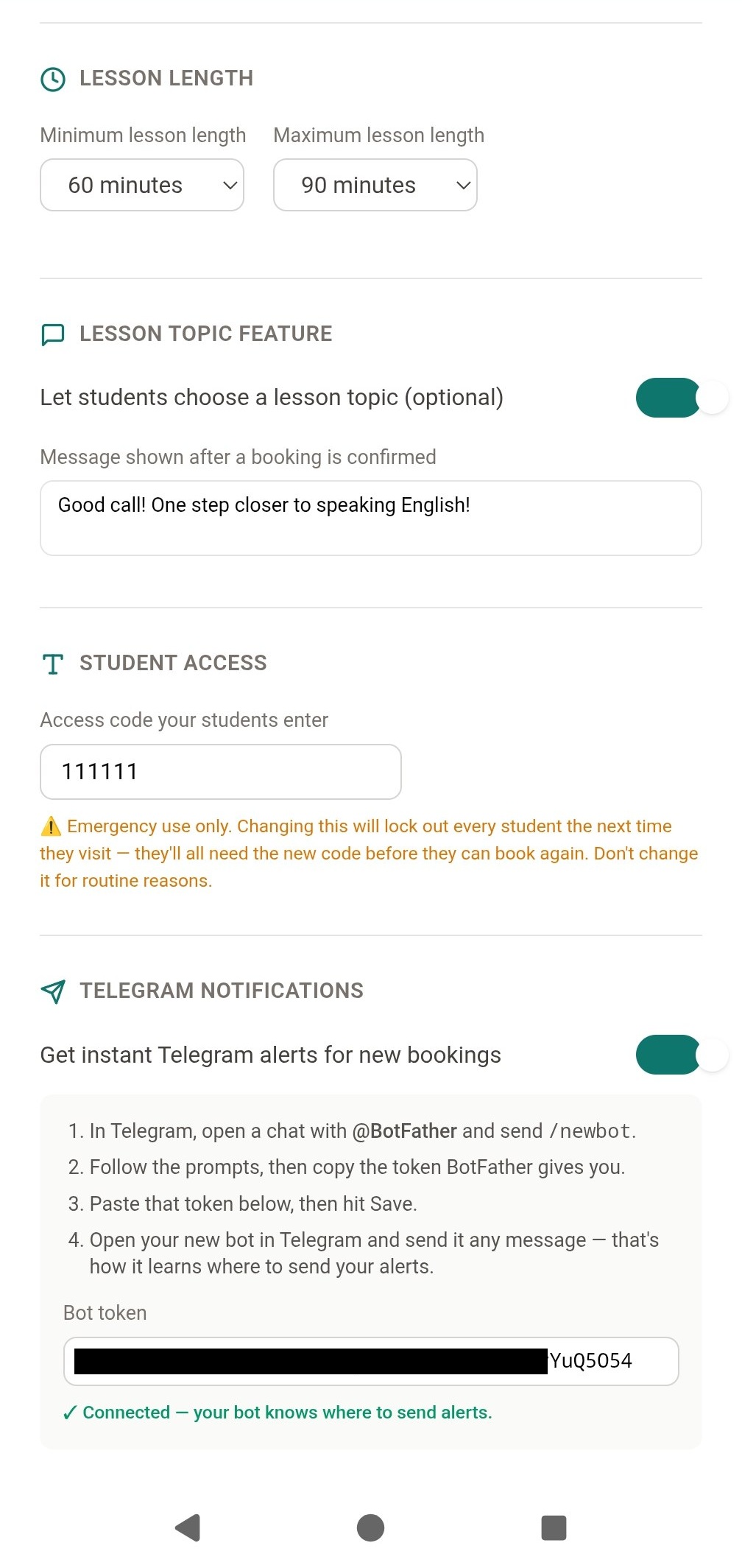
Further down: set your minimum and maximum lesson length, decide whether students can suggest a topic, and write the message they see after booking. Your student access code is also here — treat it as an emergency-only reset, since changing it locks out every student until they get the new one. At the bottom, connect Telegram notifications by pasting in your bot token — once it shows ✓ Connected, you're set. Every setting on this page can be changed anytime.
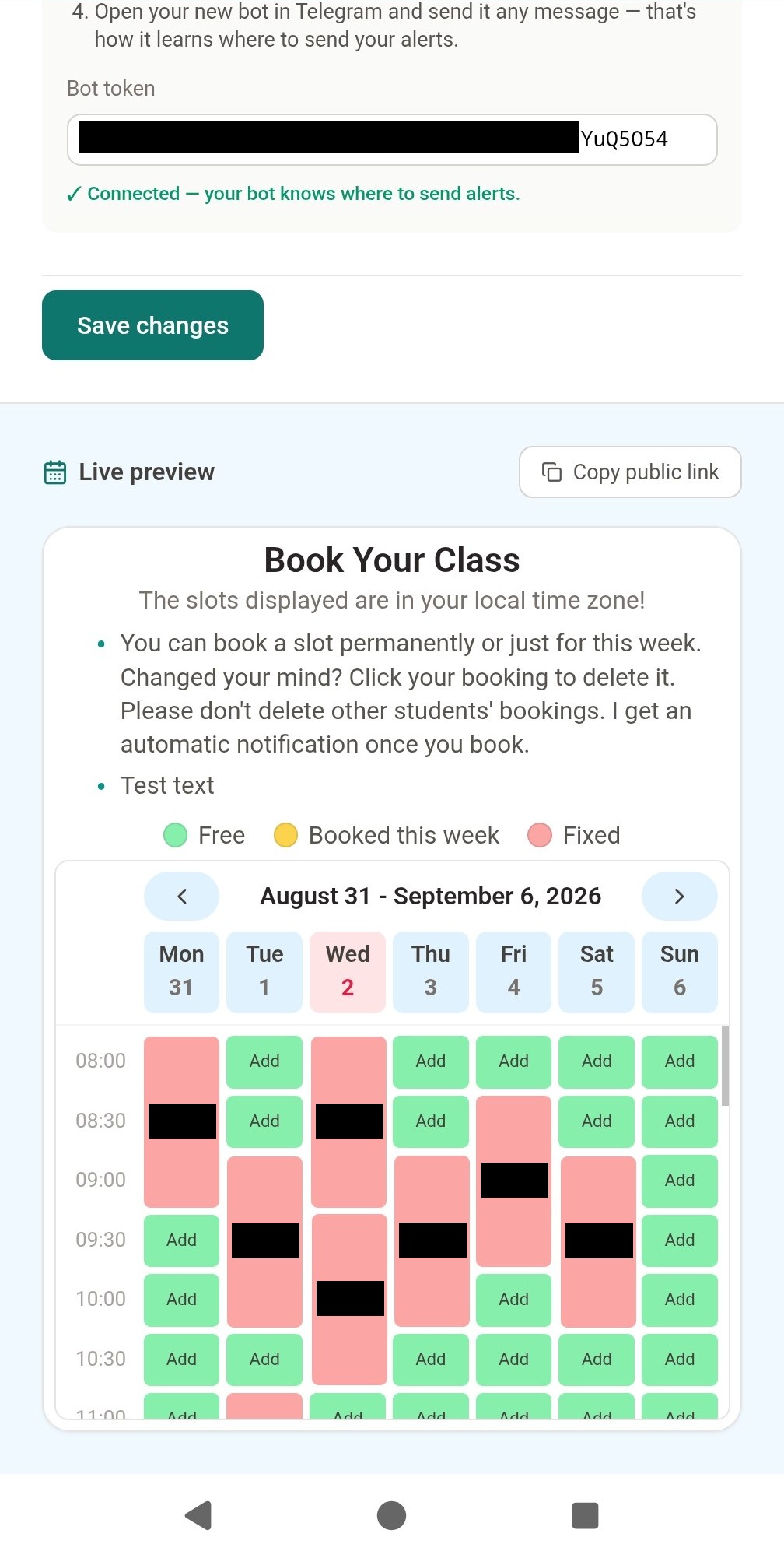
Once you save, the live preview below shows exactly what your students will see — try booking a few test classes to check the colors and layout feel right, then tap Copy public link to get the address you'll actually share. The first time a student opens it, they'll enter your access code once — after that, their browser remembers it automatically.
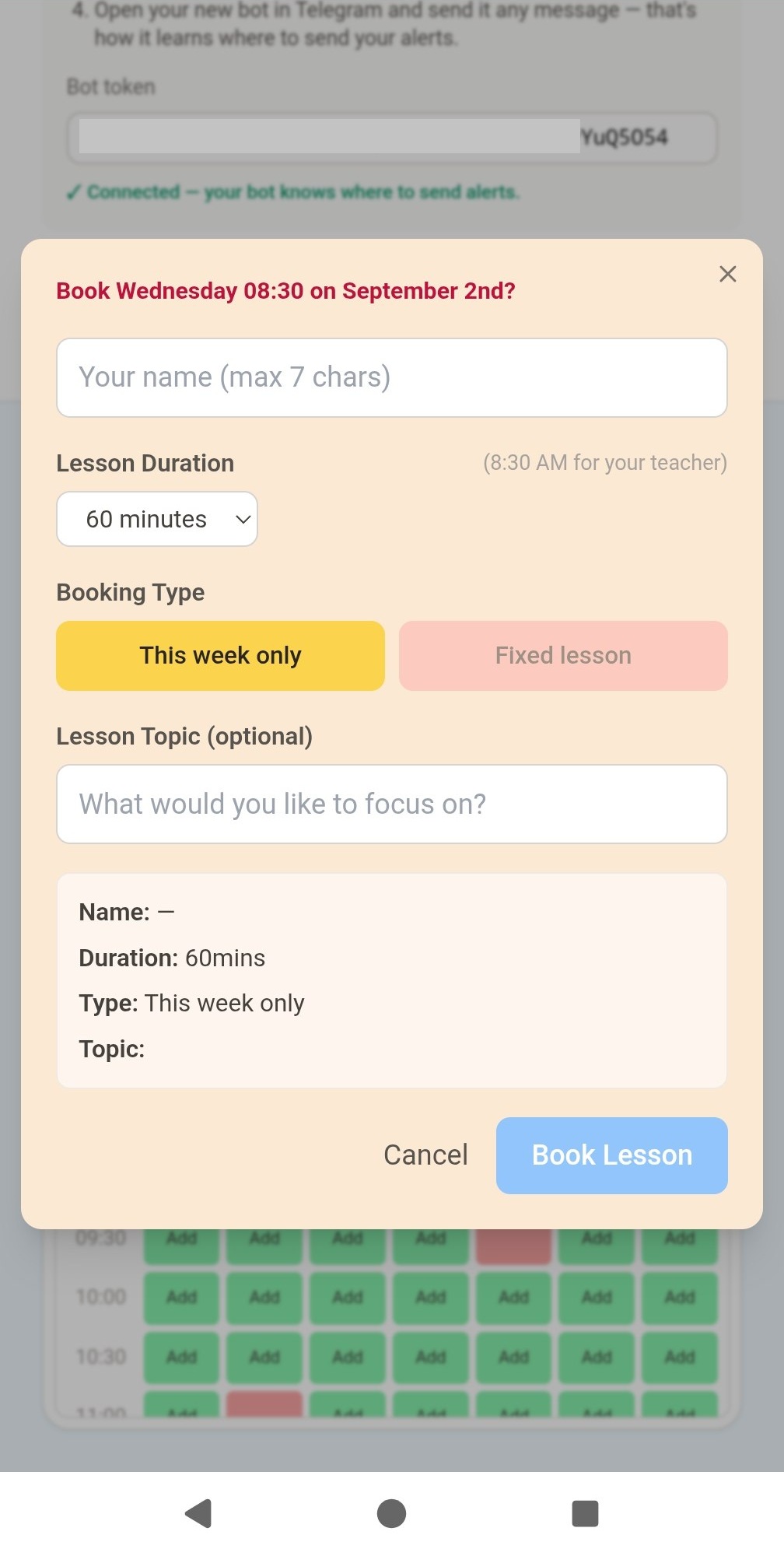
When a student taps a free slot, this is what they see: a name field (kept short so it always fits neatly on the calendar), a lesson duration dropdown limited to your chosen range, and — right at the top — the exact time in your own timezone, so nobody's ever confused about when a lesson actually falls for you.
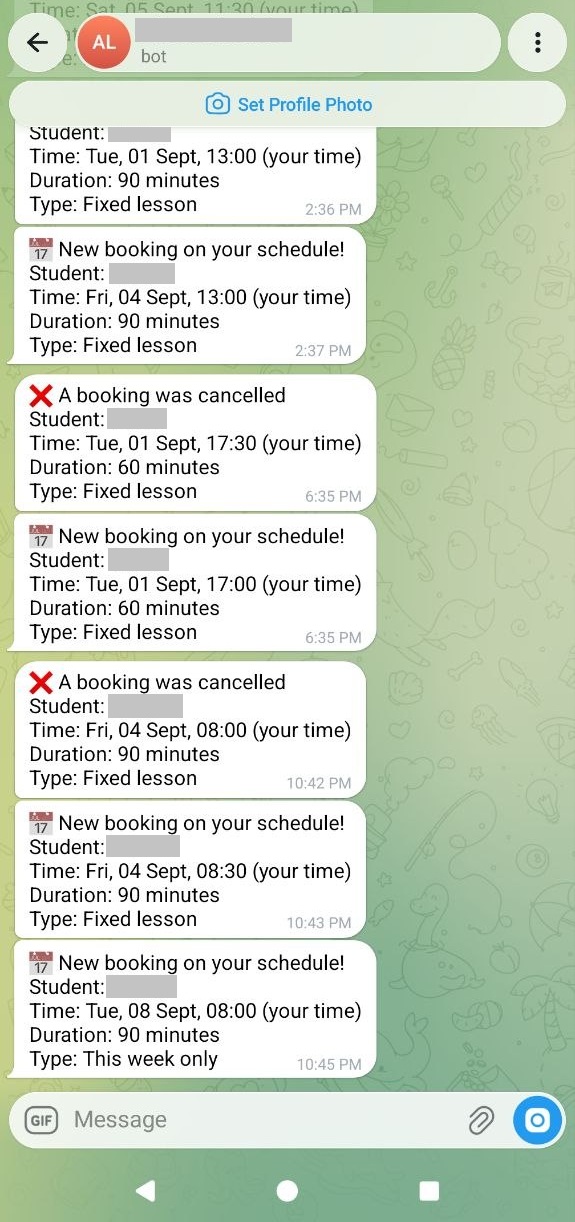
Once connected, every booking — and every cancellation — lands directly in your Telegram chat: the student's name, the time already converted to your own timezone, the duration, and whether it's a one-off or fixed weekly lesson. No need to keep the page open to know what's happening.